
- About the Meal Service Report
- Selecting People to be in the Report
- Report Settings
- Formatting Notes
- FAQs
About the Meal Service Report
The Meal Service Report lists meal service details for each person selected to be in the report. The report will not list the food items to be served. The report is commonly used if the Tray Menu Ticket Report (People) or Person-Specific Select Menus Report (People) is not used so that serving staff can access meal service details to help residents and patients with their meal choices.
The meal service details the report can contain for a person are as follows:
- Name (first, middle, last)
- Residence area
- ID (date of birth, client ID or MRN) (option)
- Diet type and Texture type
- Fluid type
- Dining area, table and seat (option)
- Allergens
- Resident/patient photos (option)
- Personal menu items (option)
- Serving size adjustments (option)
- Specific substitutes (option
- Fallback substitutes (option)
- Do not serve (DNS) items (option)
- Like preferences and dislike preferences (option)
- Service notes (i.e., daily notes and individual meal period notes) (option)
- Personal notes added to menu items (option)
- Most recent profile note (option)
Selecting People to be in the Report
Select the people to be included in the report via the following separate instructions: Selecting People to be Included in Reports.
Report Settings
After selecting the people to be included in the report, select Food Services Reports > Meal Service Report from the left side of the screen. The Meal Service Report section appears for you to select the report settings.
Printing a Consolidated Report
When the Preferences & Menu Customization option is selected in the Optional Content section, the report includes the personal menu customizations listed for a resident/patient.
Selecting the Consolidated report (all days & meals) option from the Report Content drop-down (first screenshot below) prints the fallback substitutes, serving size adjustments, and personal menu items for all days and meal periods (breakfast, lunch, dinner), as shown in second screenshot below.
Printing for Specific Days and Meal Periods
When the Preferences & Menu Customization option is selected in the Optional Content section, the report includes the personal menu customizations for a resident/patient.
Selecting the Day specific report option from the Report Content drop-down allows you to select the specific days and meal periods (breakfast, lunch, dinner) from the Days and Meals fields, respectively. The fallback substitutes, serving size adjustments, and personal menu items for the selected days and meal periods will be printed.
In the example screenshot below, Saturday is selected as the day, and Breakfast and Lunch are selected for the meal periods.
The report therefore generates any fallback substitutes, serving size adjustments, and personal menu items set for Saturday breakfast and lunch.
Other Content
-
Include people with service type - filters the people to be included in the report based on their service types: Non-Select, Table Select, and Advance Ordering.
-
People ID
- None - does not include a person’s identification information.
- Date of Birth - includes the person’s date of birth.
- Client ID - includes the person’s client ID (assigned by your facility).
- MRN - includes the person’s MRN (medical record number) from the EHR system
Format
- From the Sort By field, select how you want the Meal Service report to be sorted:
-
Person Name - sorts the report alphabetically by last name.
-
Dining Area - sorts the report according to the sort order of dining areas (including residence area enabled as a dining area for in-room service), then sub-sorted by tables, and then further sub-sorted by seat number.
-
Room - sorts the report according to the alphabetical/numerical order of residence areas.
-
Delivery Sequence - sorts the tickets according to the Delivery Sequence feature, which allows for the customized sorting of dining areas and their tables and seats, and residence areas that are enabled as dining areas (for in-room service) and their rooms and beds. For more information and instructions on setting the sorting for the Delivery Sequence feature, see Setting the Sort Order for People Reports (e.g., Tray Menu Tickets).
- The Each area starts on a new page option is available if sorting by Dining Area, Room or Delivery Sequence. Select this option to generate a page break between dining areas or residence areas.
- The Print each table on separate pages option is available if sorting by Dining Area. Select this option to generate a page break between tables in a dining area.
-
Person Name - sorts the report alphabetically by last name.
-
Highlight Allergies and Non-Regular Diet Orders - highlights in yellow a person’s allergies and non-regular diet types, textures, and fluid types.
Optional Content
-
Likes & Dislikes - includes a person’s like preferences and dislike preferences set up in their personal menu.
- Personal menu customizations - report includes the personal menu customizations listed below for a resident:
-
Diner Photos - includes the person's photo at the top right of their meal service details page.
-
Most Recent Profile Note - includes the person’s most recent profile note that has been entered for them.
-
Service Notes - includes service notes (i.e., daily notes and individual meal period notes), personal notes for standard menu items, and personal notes for personal menu items.
-
Serving Utensil - ?
-
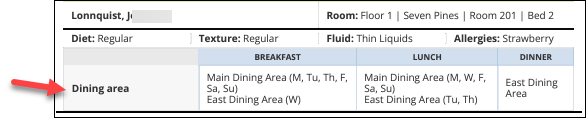
Dining Area - this option includes an additional Dining Area section at the top of each person’s profile in the report (screenshot below). The purpose of this section is to quickly capture the reader’s eye if the person is assigned a single dining area (including residence area enabled as a dining area for in-room service) or various dining areas.
Formatting Notes
If Resident is Assigned Different Texture Types
For a resident assigned different texture types across meal periods, a Texture row is available that indicates what texture type is assigned to what meal period.
If Resident is Assigned Different Dining Areas
For a resident assigned different dining areas, a Dining Area row is available that indicates what dining area is assigned to what meal period and day.
FAQs
Why is a resident being skipped / not showing up on my Meal Service Report?
The most likely reason is that the resident is assigned a service type that you have not selected to be in the report via the Service Type field (below).
Why is an allergy "unknown"?
When a Connect message contains an unknown allergen from the EHR that remains unresolved (i.e., the EHR allergen is not mapped to a MealSuite allergen group), then the report prefaces the allergy with Unknown:
If there are multiple unknown allergens, then Unknown: is listed once with each unknown allergen listed after.
Why is a diet order in red font?
If the diet order (diet, texture, fluid) for a person is in red font, it indicates that their diet order is invalid, and as such their diet order needs to be resolved. For more information, see Invalid Diet Orders.
Can I sort the report by diet type or texture type?
No. You cannot sort the report by diet type or texture type.